Spotify integration
note
If Spotify is already enabled, you can skip Step 1. Spotify enabling is tenant-specific and used by all created podcasts.
Step 1: Enable Spotify support
In the Subrite admin dashboard:
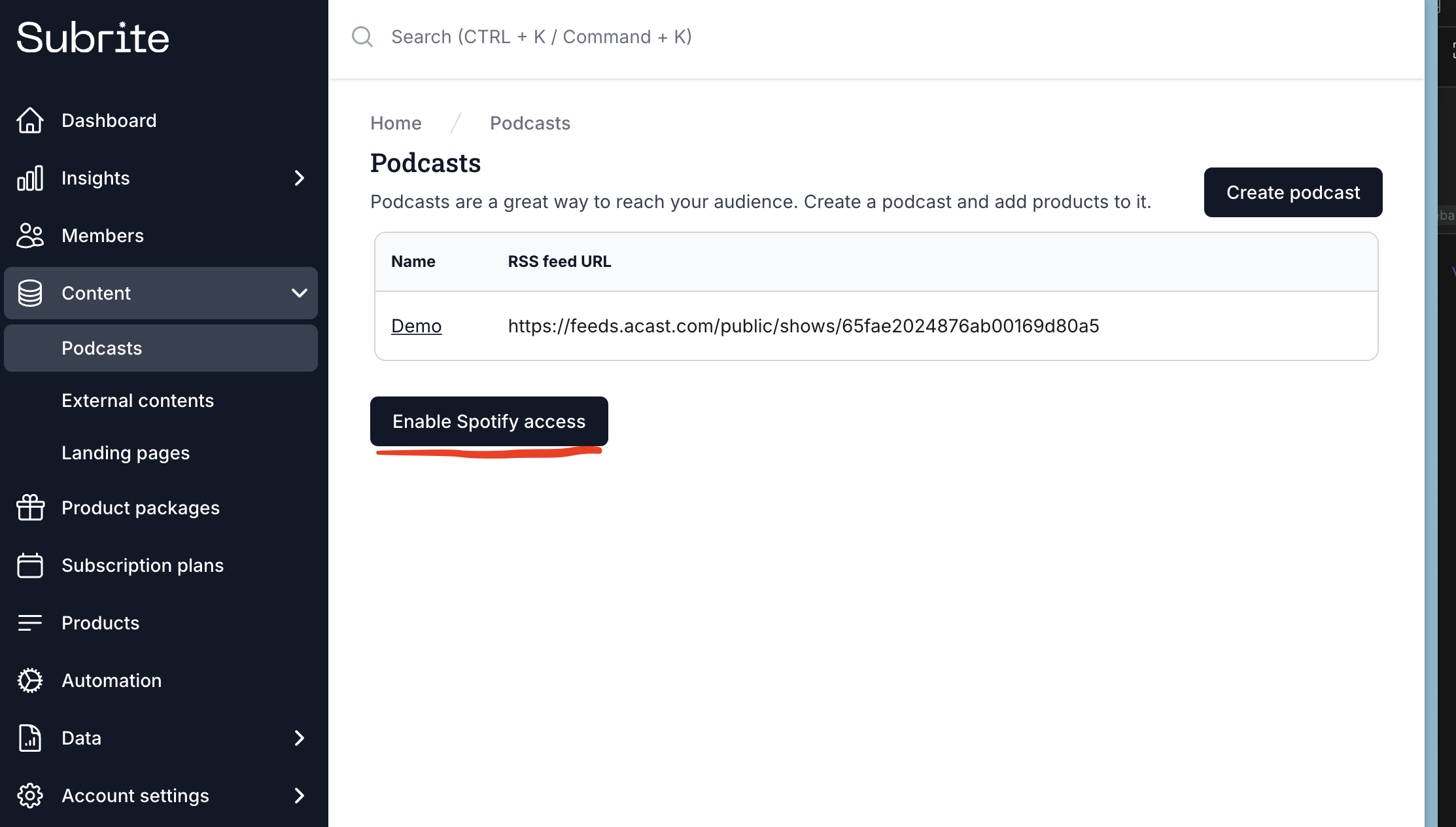
- Navigate to Content > Podcasts
- Click Enable Spotify access
Step 2: Copy Spotify ingestion URL
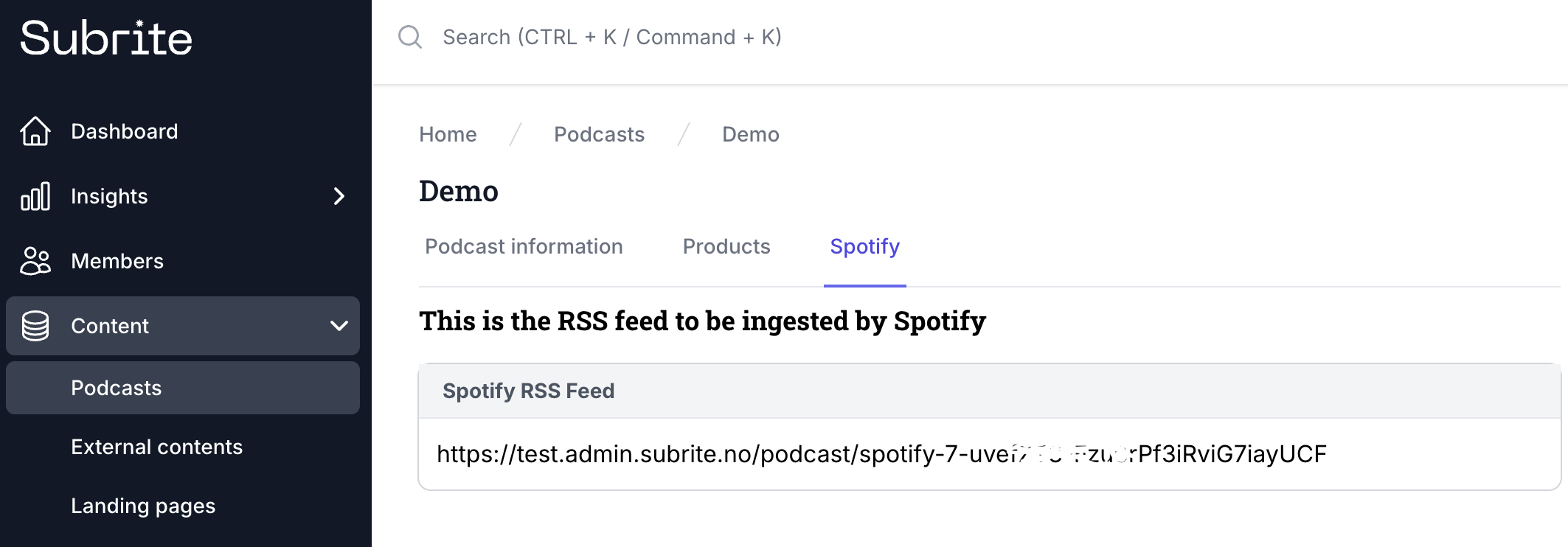
- Open your podcast settings by clicking on its name.
- Go to the Spotify-tab and copy the value for Spotify RSS Feed. This will be added to Spotify for Creators
Step 3: Spotify for Creators
- Log in to Spotify for Creators
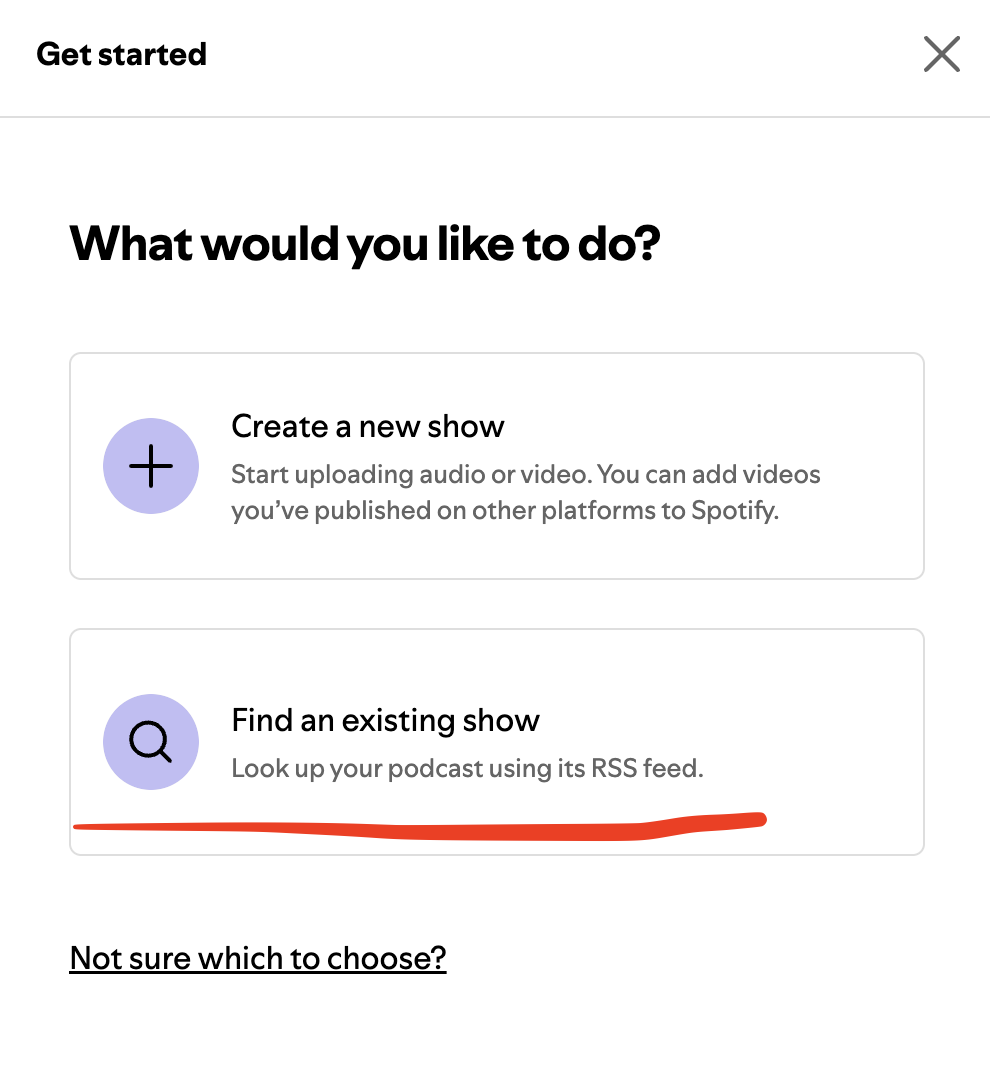
- Click Find an existing show
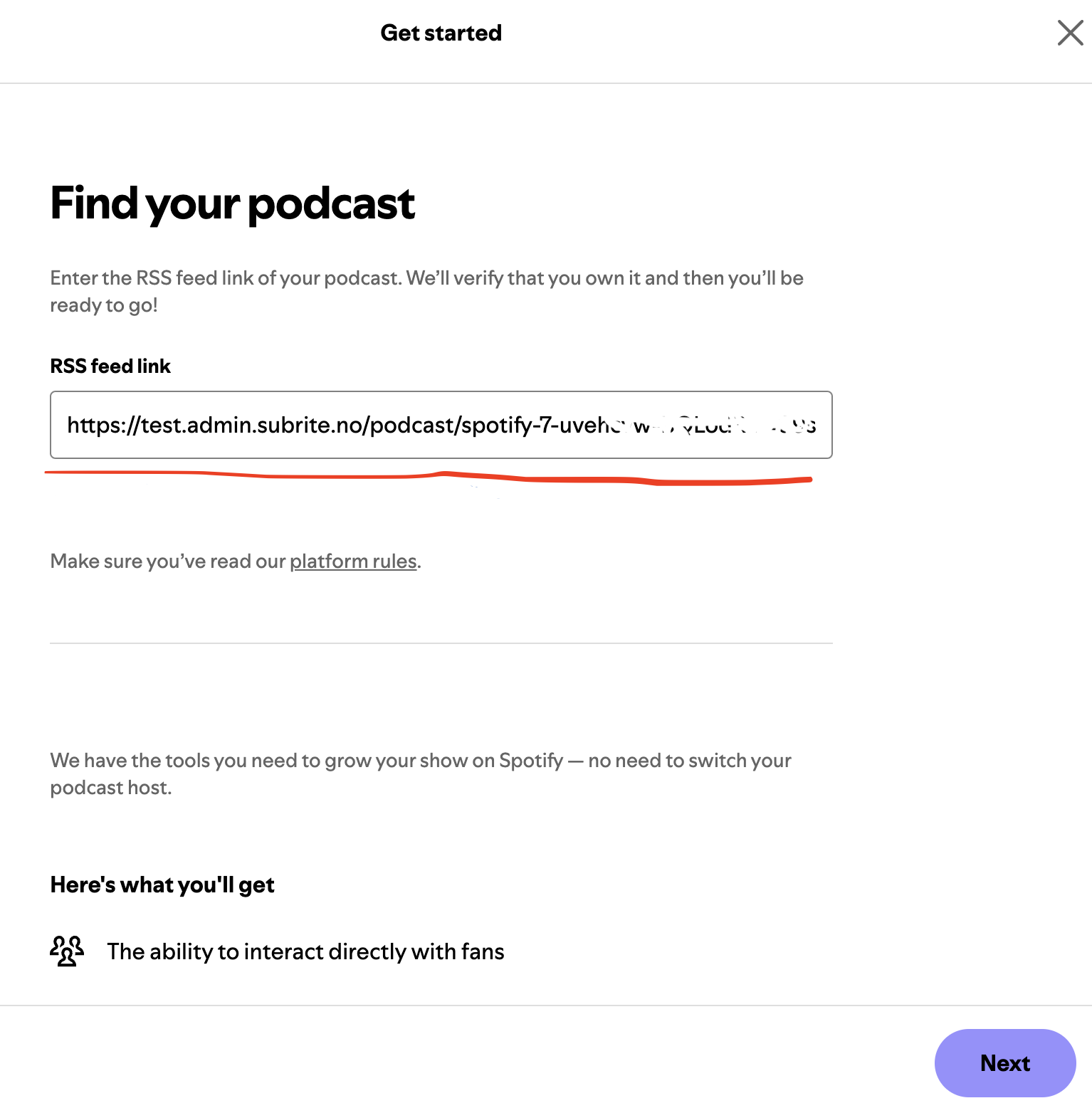
- Submit the Spotify ingestion URL from Subrite into the form
- Complete the show setup in Spotify for Creators
Step 4: Add Redirect URI
This step is handled by Subrite
The Redirect URI must be added from Subrite's shared Spotify developer account, which clients do not have access to. Contact Subrite support and we will add it on your behalf.
When requesting this, please send support the following:
- Your tenant domain (e.g.,
example.subrite.com) - Your podcast name and, if available, the Spotify show URL from Step 3
For Subrite staff
- Log in to the Spotify for Developers Dashboard with the shared Subrite account.
- If prompted for a one-time passcode (OTP), retrieve it from the internal OTP inbox.
- Open the Subrite Spotify app, then go to Settings → Redirect URIs.
- Add
https://<tenant-domain>/api/spotify/callback(replace<tenant-domain>with the tenant's actual domain) and save.

Step 5: Add the Show URL
- In Spotify for Creators, open your podcast.
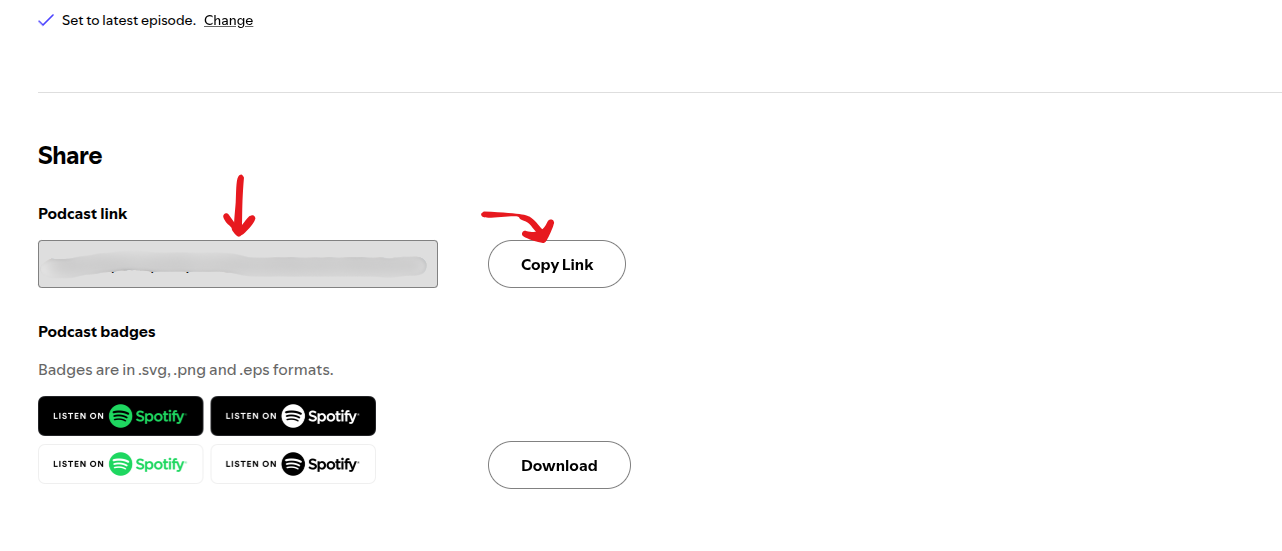
- Go to Settings, then the Share section.
- Copy the Podcast link (e.g.,
https://open.spotify.com/show/XXXXXXXX).
- Go back to the Subrite admin dashboard → your podcast → Spotify tab.
- Paste the copied link into the Show URL field.
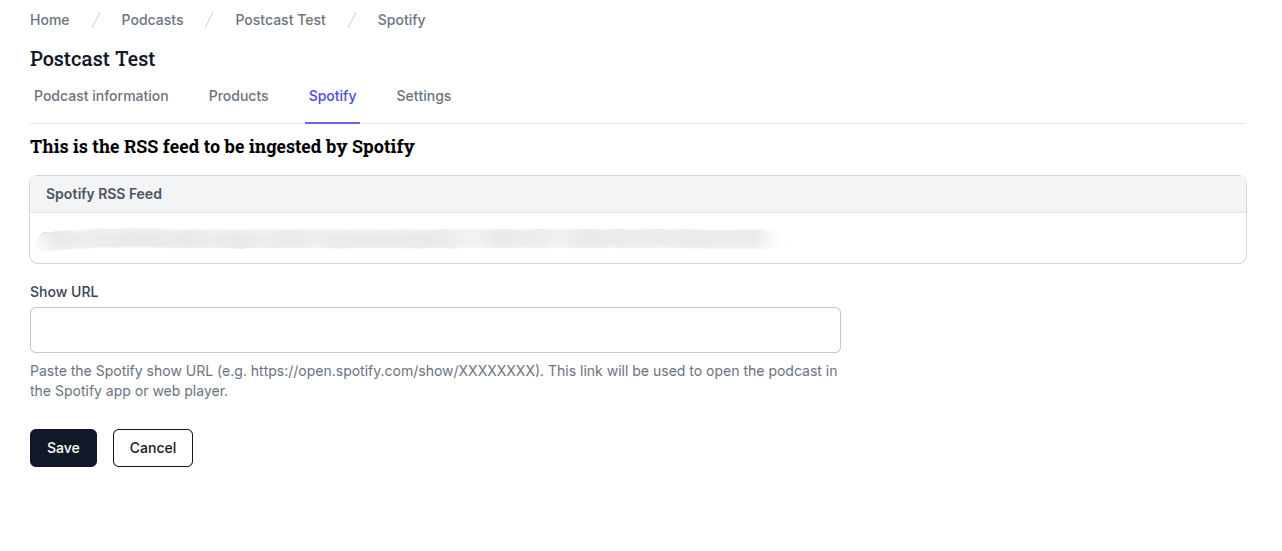
This link will be used to open the podcast in the Spotify app or web player.
✅ That’s it! Now your podcast is fully set up with Spotify ingestion and direct linking support.