Basic setup
Subrite uses Firebase Cloud Messaging for sending push notifications, and needs credentials from your Firebase-project to enable this.
Step 1
If there isn't already a Firebase project for your app, set up one. Follow guides at Firebase docs
Step 2
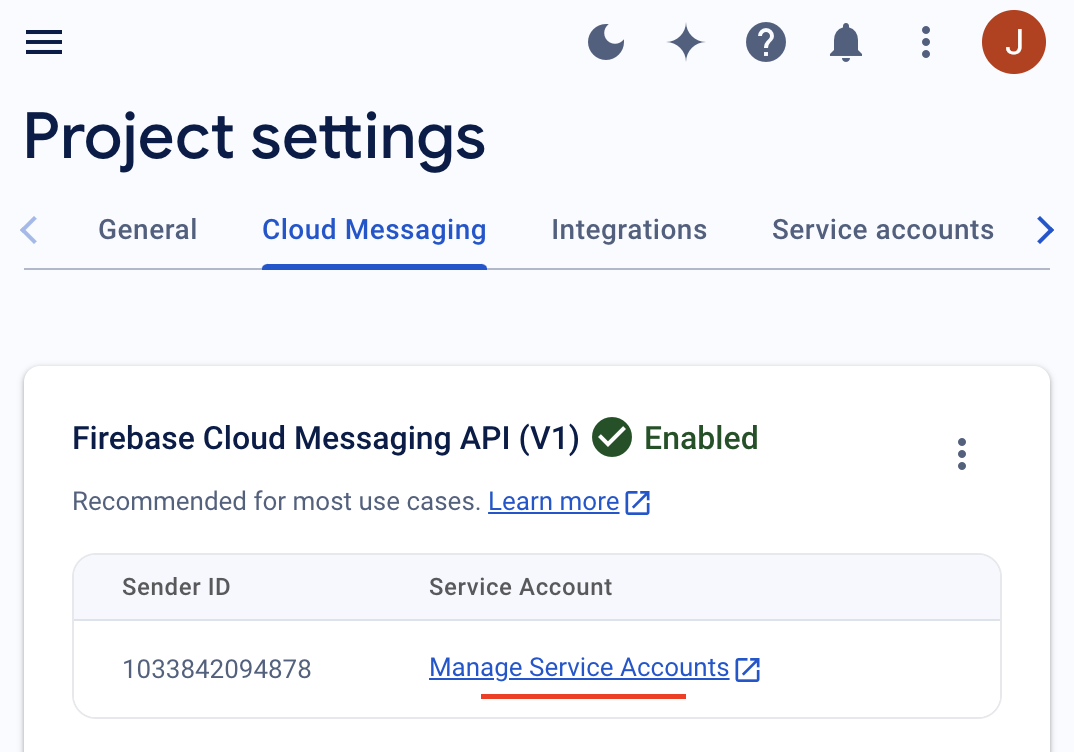
Go to the Project settings of your Firebase project. Under Cloud Messaging, click the Manage Service Account-link.
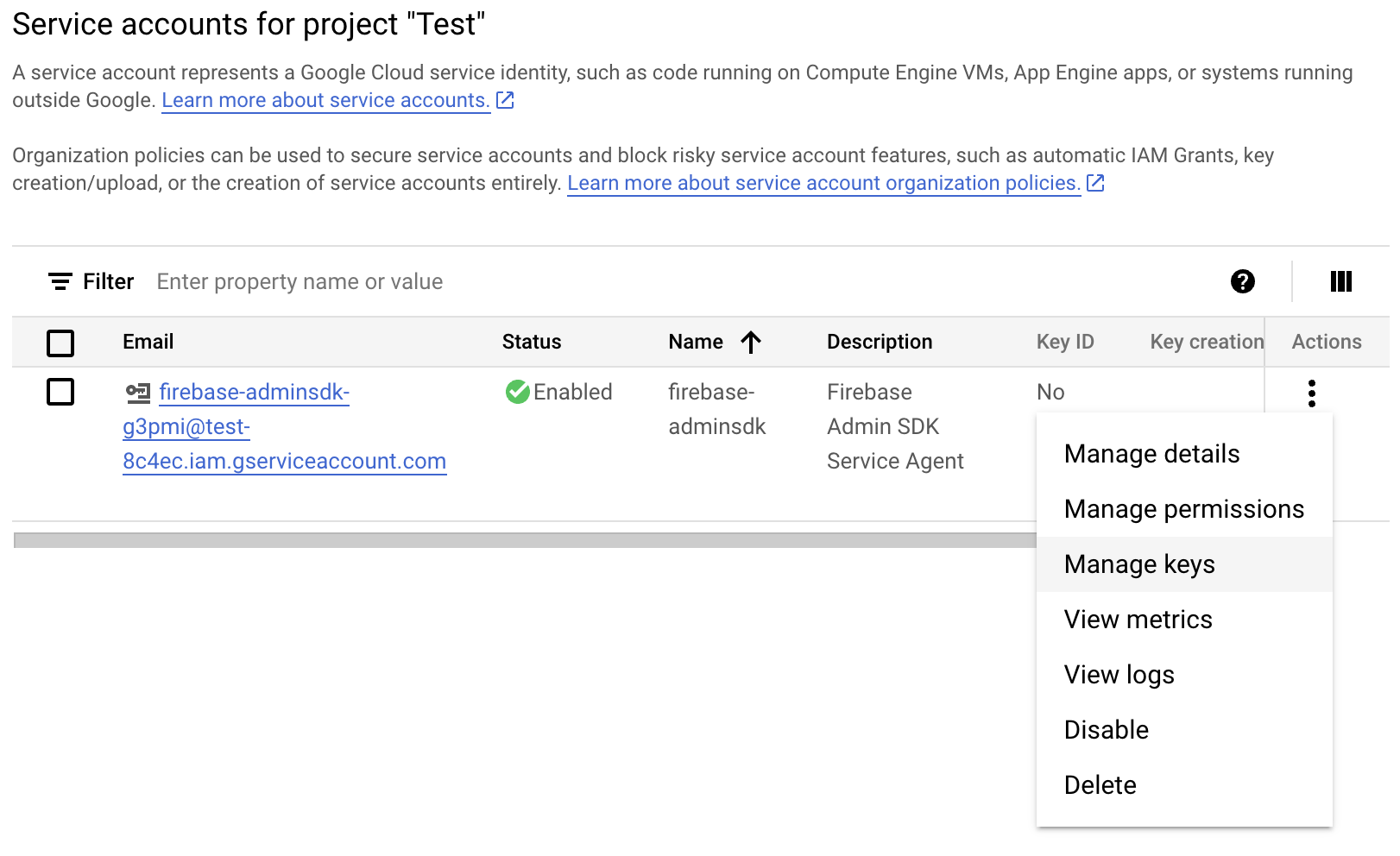
Click Manage keys under Actions.
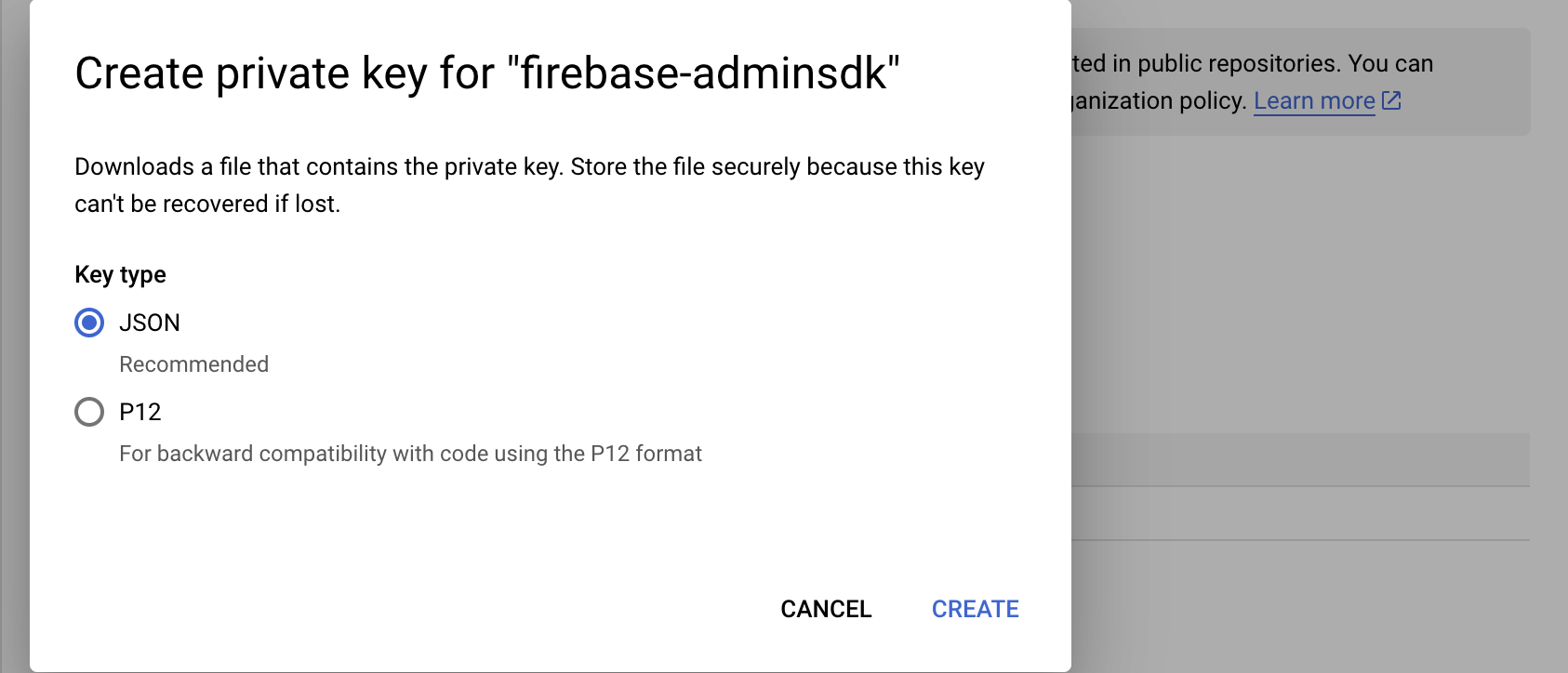
Add a new key by clicking ADD KEY > Create new key.

Select the default JSON key type.
You should now have a JSON-file from Google with the credentials needed to send push notifications.
Step 3
The JSON contents of the credentials need to be POST-ed to the Subrite API.
- Method:
POST - Route:
{baseUrl}/api/v1/app-push/setup - Authorization: Bearer token (use JWT for logged in user with tenant administration access)
- Body: See example below
Example of body :
{
  "providerCredentials": "{\"type\":\"service_account\",\"project_id\":\"test\",\"private_key_id\":\"aaaaaaaaaaaaaaaaaaaaaaaaaaaaaaaaaaaaaaaa\",\"private_key\":\"-----BEGIN PRIVATE KEY-----\\<<private key here>>\\n-----END PRIVATE KEY-----\\n\",\"client_email\":\"[email protected]\",\"client_id\":\"100000000000000000000\",\"auth_uri\":\"https://accounts.google.com/o/oauth2/auth\",\"token_uri\":\"https://oauth2.googleapis.com/token\",\"auth_provider_x509_cert_url\":\"https://www.googleapis.com/oauth2/v1/certs\",\"client_x509_cert_url\":\"https://www.googleapis.com/robot/v1/metadata/x509/firebase-adminsdk-zynzs%4test.iam.gserviceaccount.com\",\"universe_domain\":\"googleapis.com\"}"
}
Step 4
For the app to authenticate itself to the Subrite API when adding or removing subscribers, you will need a M2M authentication token.
Go to the admin dashboard in subrite, typically an URL like https://minside.YOUR_TENTANT.no/admin/dashboard
Click into Account settings, Settings, M2M Client. Click New Settings.
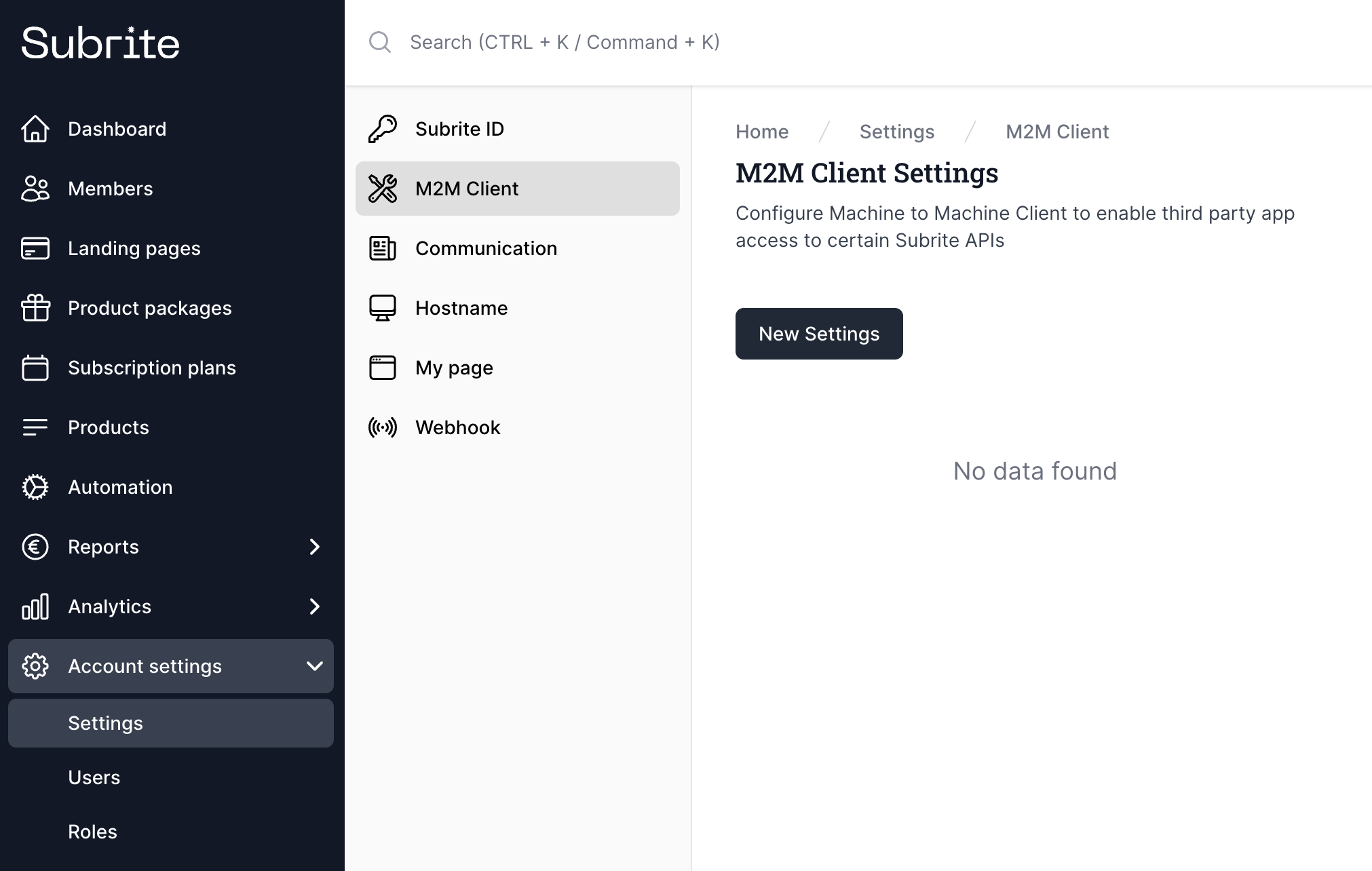
Fill in the form as showed under. Make sure the section Push Subscription has Read and Update selected. Click Save.
Important note: DO NOT select any other sections, as this token will be embedded in your app, readable to any user. Leaked tokens with extended privileges can cause serious security issues.
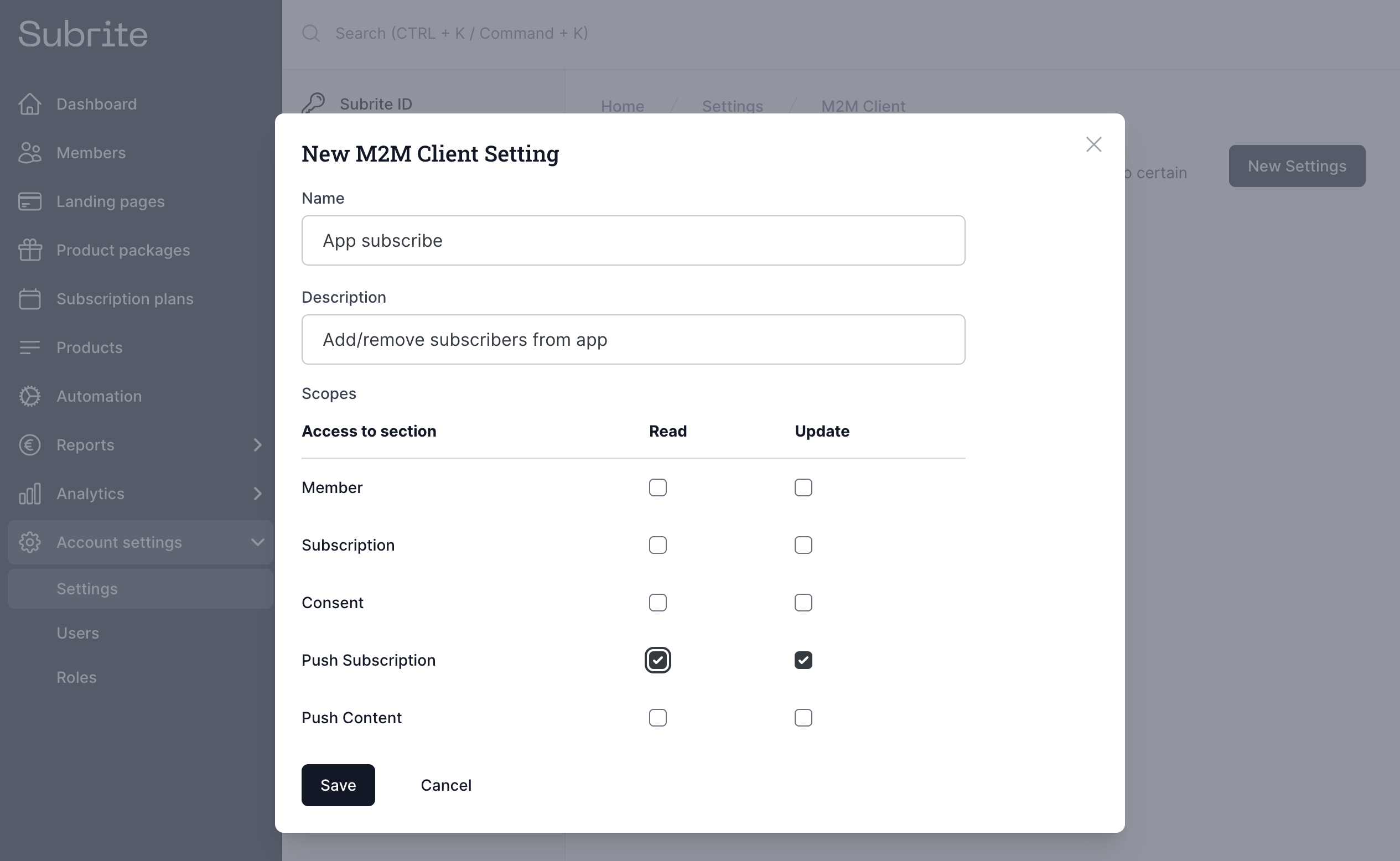
Copy the provided JWT string and keep it, for embedding in the app.
Step 5
You will need one more M2M token, this one for triggering the dispatch of a new push notifications to all subscribers.
Repeat step 4, but this time select section Push Content with Read and Update selected. Click Save.
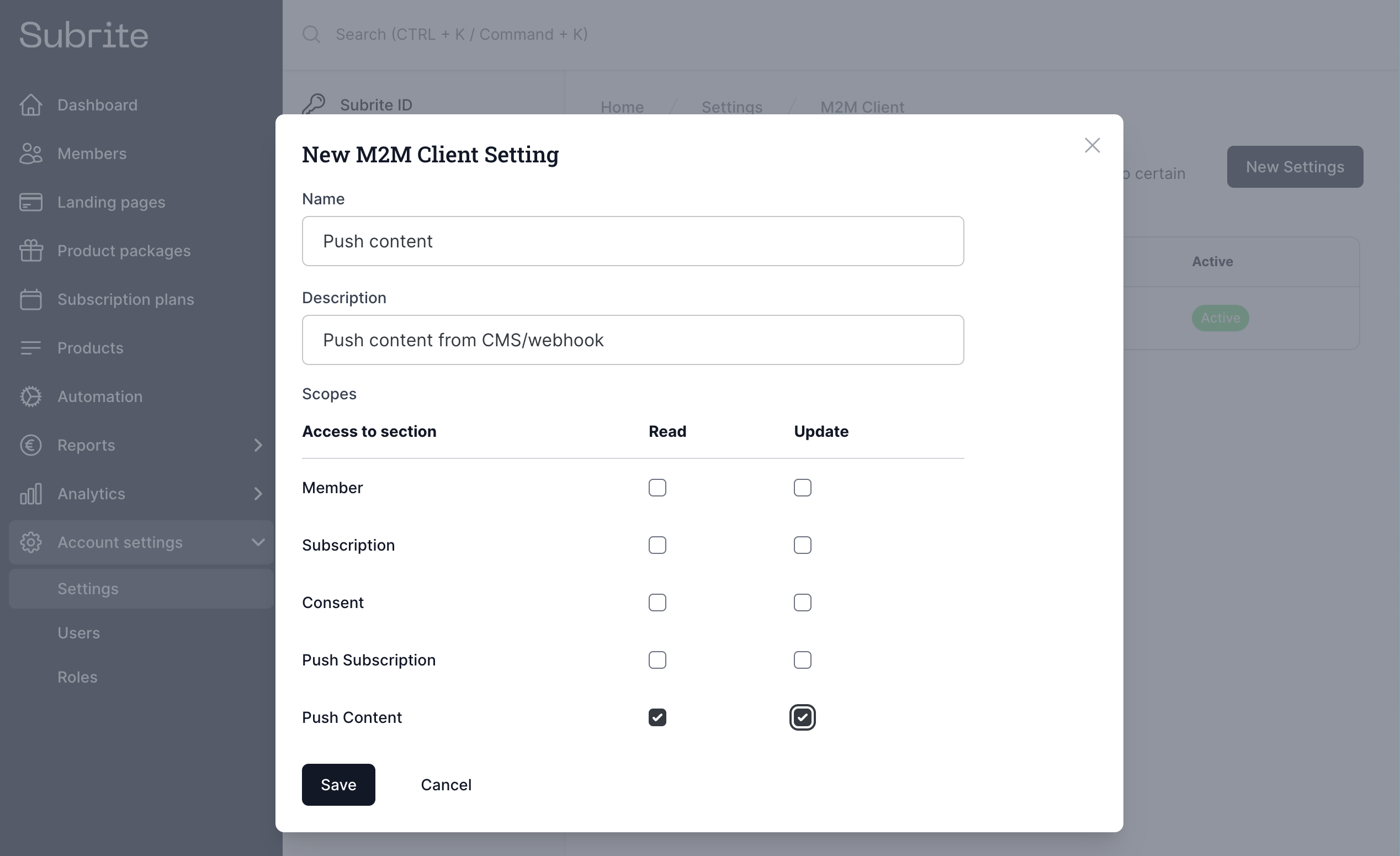
The two selections map to the scopes the server integration needs:
push-content:update— dispatching a new push notificationpush-content:read— reading campaigns back and looking up their delivery stats
Copy the provided JWT string and keep it, for embedding into your server environment
Step 6
By default, a push notification is only filtered by topic when you send topics with it. If you send none, every subscribed device is notified. If you do send topics, only devices that subscribed to at least one of them are notified, and if no device matches, no one is notified at all. The API call still returns success, and the campaign ends up with status: "skipped" when you read it back, see content server integration.
That is a common trap when your CMS puts article tags or categories into the topics it sends with the notification, while your app subscribes devices without any topics.
If that is your case, go to the admin dashboard and click into Account settings, Settings, Communications. Open the Push notifications tab and turn on Discard topics.
The setting is off by default. When it is on, the topics on the notification are ignored, and every subscribed device on your tenant is notified. This applies to all sends, both the ones triggered from your server and campaigns composed in the admin dashboard. The topics are still stored on the campaign, so you can see what was sent.
Leave it off if you rely on per-topic opt-in.
The Push notifications tab is only available for tenants with push notifications enabled.
Now the basic setup should be ready, and you can continue with integrating the app.